Interface reference
Interface Reference
Section titled “Interface Reference”This page lists the main visible controls in the application: buttons, menus, command palette, forms, filters, and confirmations.
Header
Section titled “Header”| Control | Role |
|---|---|
| Current workspace badge | Return to the open workspace or home |
| API status | Run an immediate API availability check |
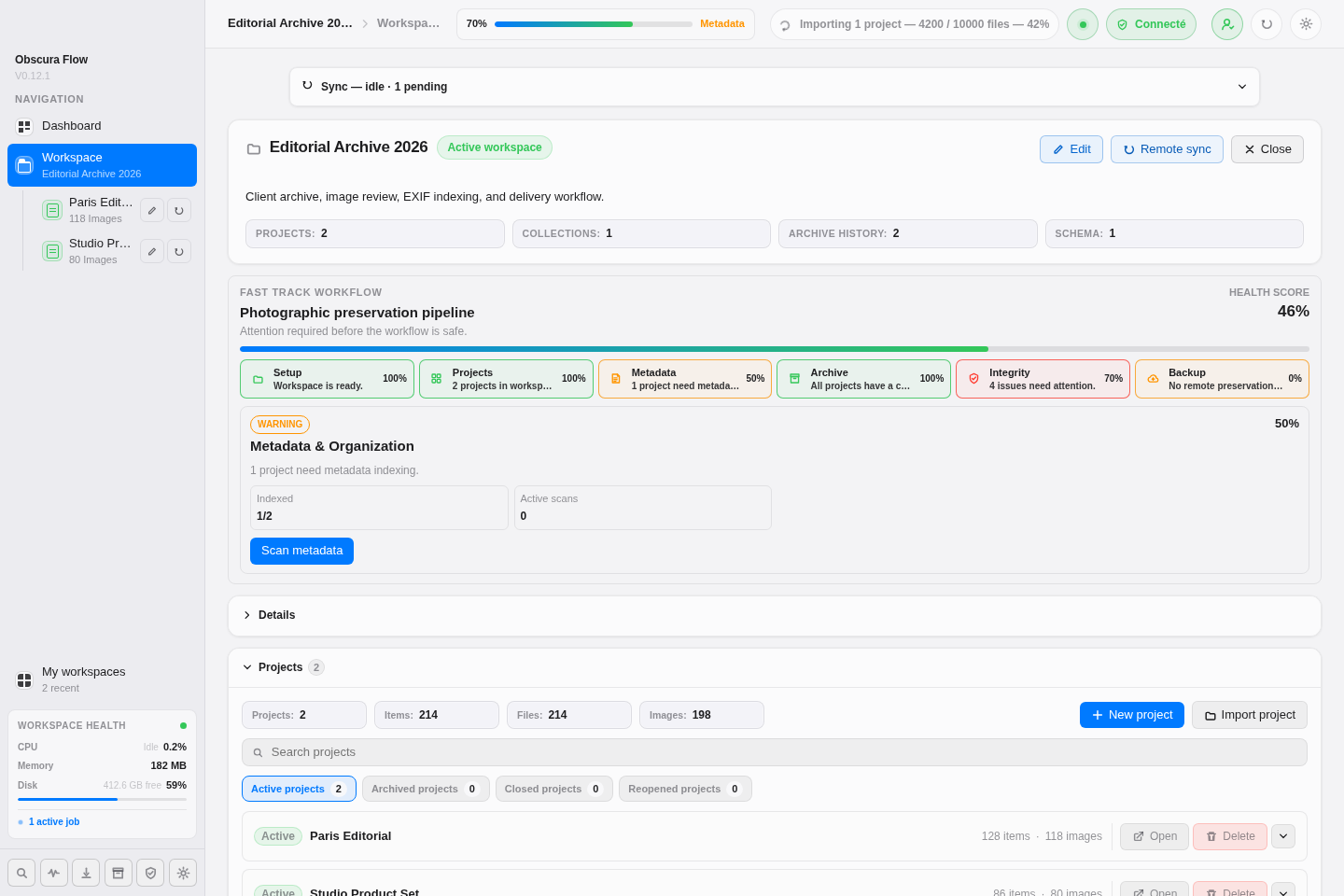
| Sync status | Read idle, syncing, success, failed, offline, or conflict state |
Remote backup badges 1 and 2 | See primary and secondary state: configured, incomplete, checking, or failed |
Update | Apply a newer API workspace version locally |
| User profile | Open authentication and license panel |
| Refresh | Reload local workspace data |
| Settings | Open preferences |
Interface States
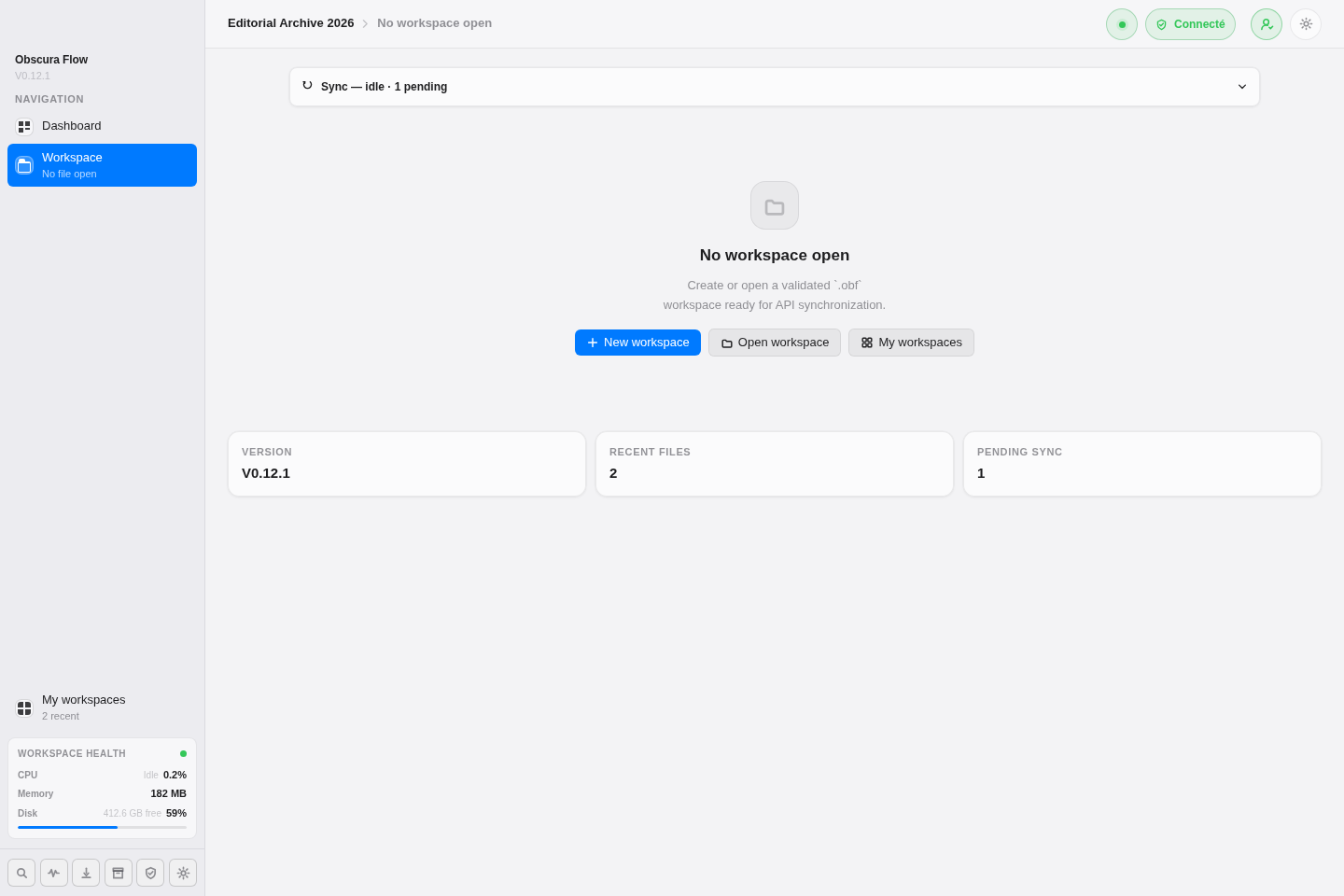
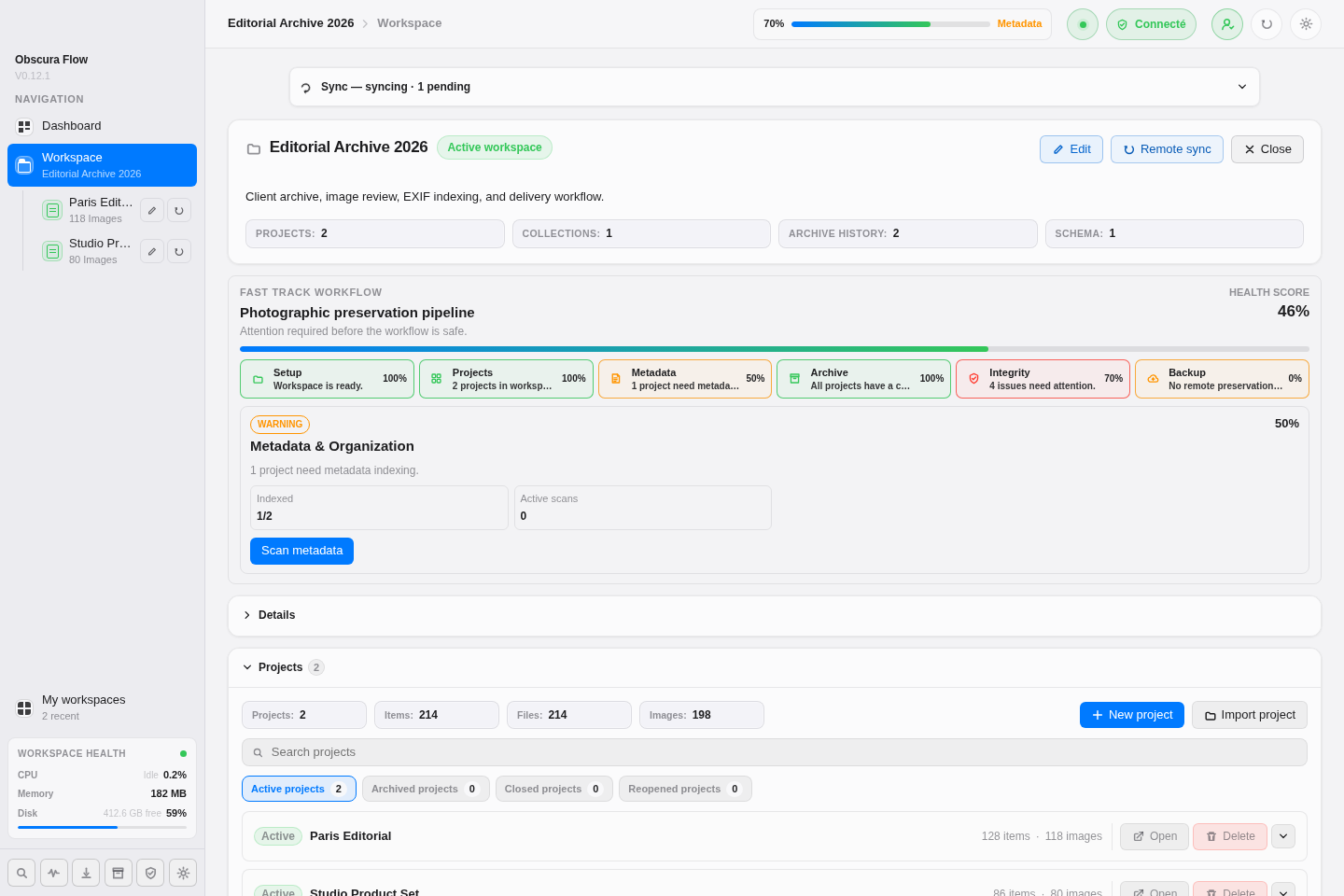
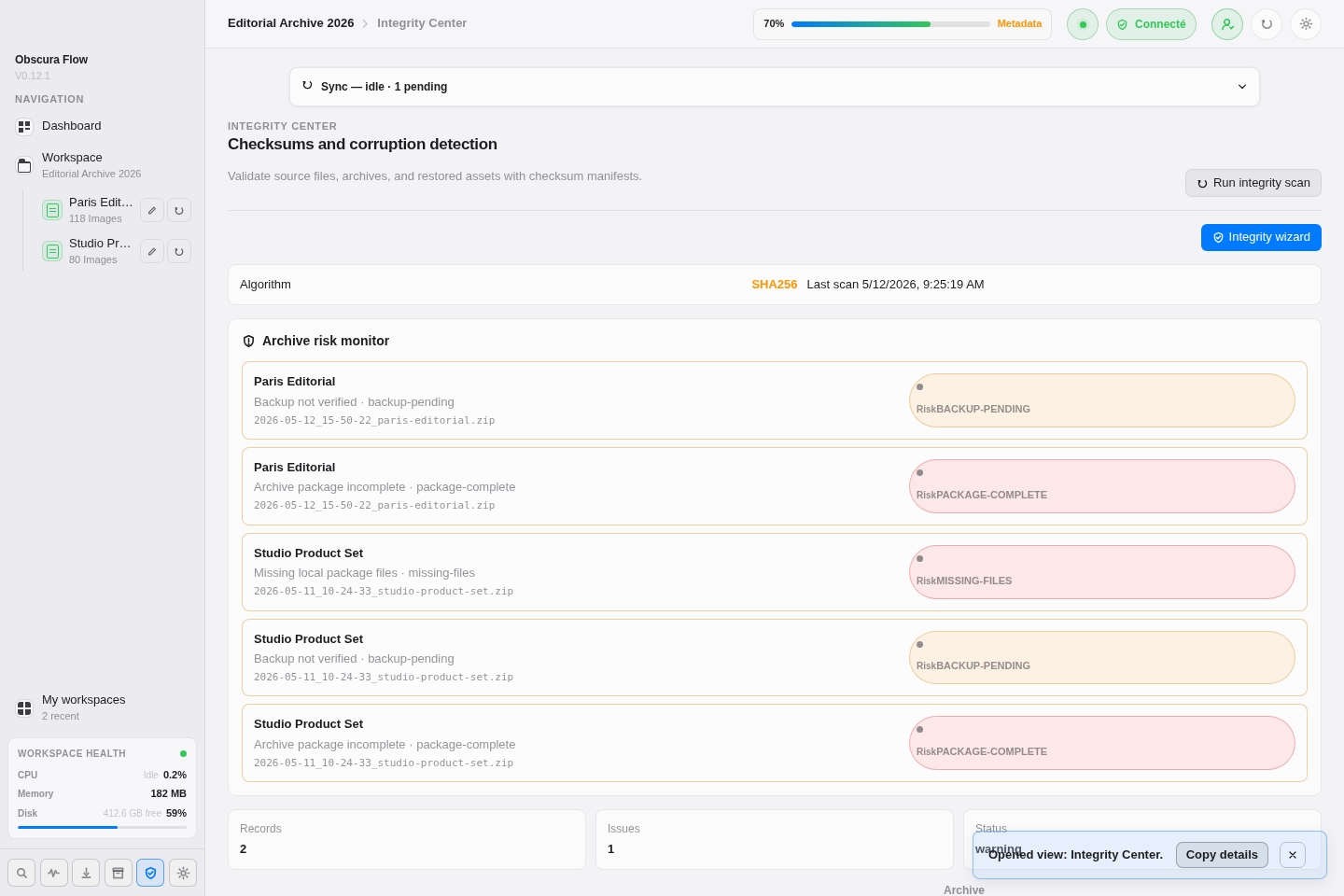
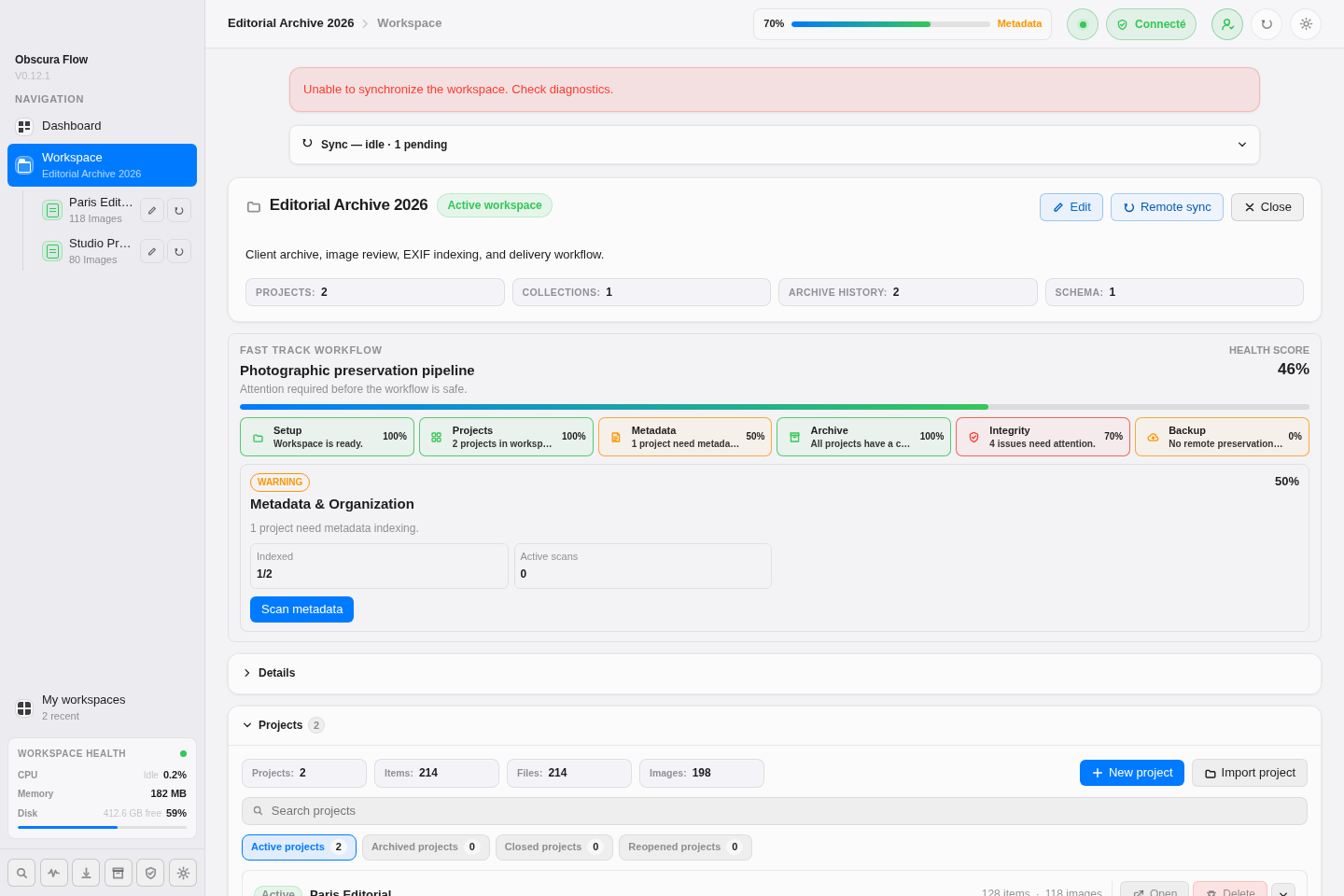
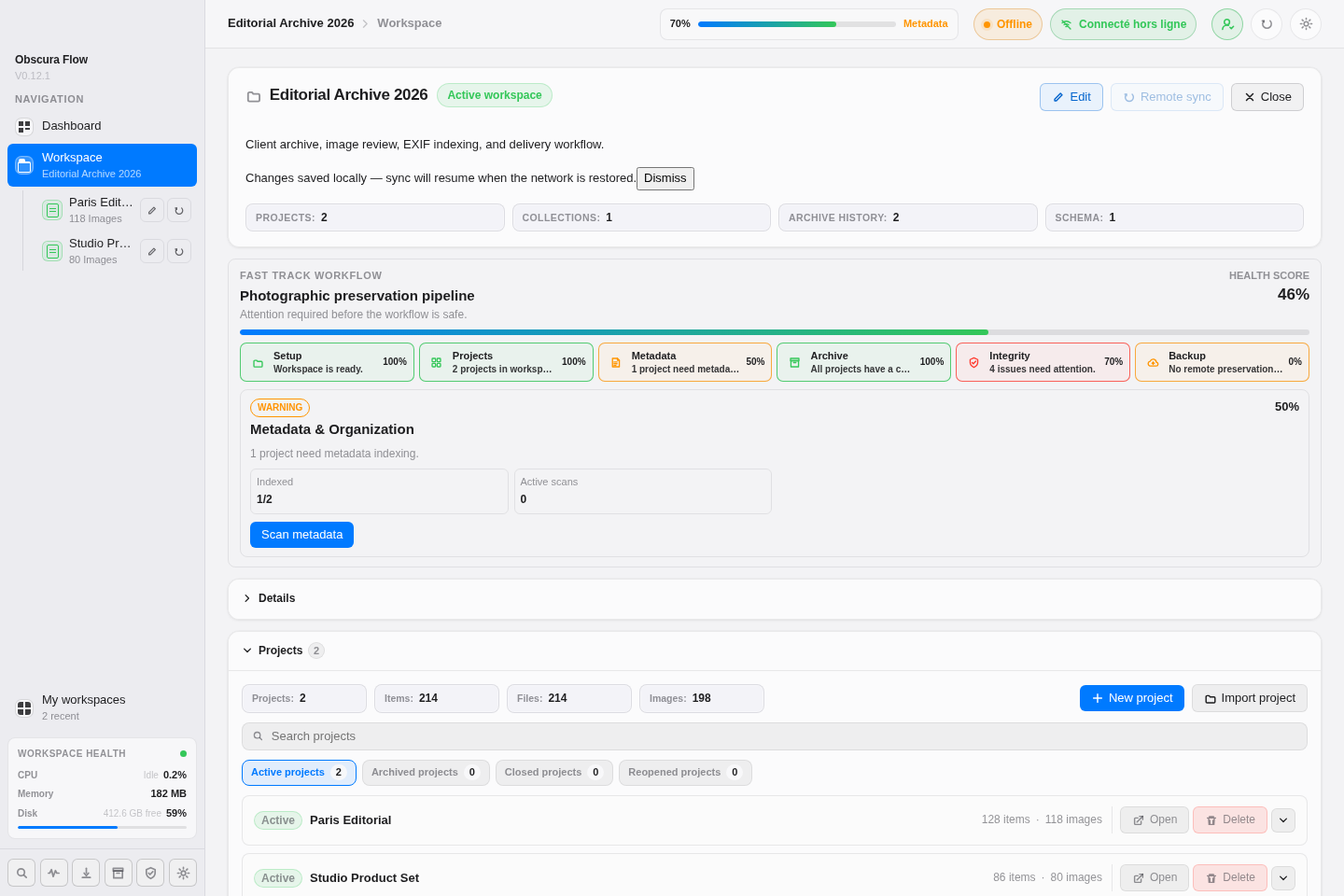
Section titled “Interface States”The same visual states are used in the header, operational cards, control centers, and import reports. They help distinguish an empty list, an operation in progress, success, warning, error, and offline work at a glance.
User Profile
Section titled “User Profile”The profile panel contains a sign-in form with Email, Password, and Sign in. Required fields show inline validation. After sign-in, the panel shows account, plan, license status, and Logout.
Product and Support Views
Section titled “Product and Support Views”| View | Controls and information |
|---|---|
| Documentation | Shows the embedded generated guide, source path, and version |
| License | Shows current license mode, user status, and application version |
| Contact | Shows the configured support channel |
| About | Presents product, features, philosophy, technology, publisher, copyable support email, external website link, and Electron/Chromium version |
| Button | Role |
|---|---|
New workspace | Open workspace creation |
Open workspace | Select an existing .obf file |
My workspaces | Open local and remote workspace browser |
The New workspace form asks for name, optional description, and root folder. Browse opens the system picker, Create workspace validates, and Cancel closes without changes.
The status grid also shows application version, recent file count, and pending synchronization operation count.
My Workspaces
Section titled “My Workspaces”The view provides Refresh, local search, remote search, Details, Load, and Remove. Removing a recent workspace opens a confirmation with Cancel and confirm; it does not delete the .obf file.
My local workspaces and My remote workspaces sections are collapsible. Details expose workspace ID, file path, backend ID, and copy buttons. Remote workspaces show their description or root path, export date, and API state.
Workspace
Section titled “Workspace”| Control | Role |
|---|---|
Edit | Edit workspace name and description |
Save | Save modal changes |
Close | Close the current workspace |
Reveal in Finder | Open the root folder |
Remote sync | Save and run API synchronization |
New project | Open project creation |
Import project | Start the import wizard |
| Project search | Filter project list |
Project
Section titled “Project”Project cards provide Open, Delete, a details expansion button, Edit, Archive project, Refresh for archive eligibility, and Remote backup when an archive and target are available.
The project detail exposes Update preview, Generate files, Scan EXIF, Cancel scan, Show data or Hide data, an EXIF file filter, and copy buttons for identifiers, paths, and checksums.
Project deletion asks for DELETE. It can remove only the project from the workspace or move the local folder to trash when the folder belongs to the workspace.
Import and Wizards
Section titled “Import and Wizards”Wizards use side steps, Back, Next, Cancel, then a final action. Steps cover source folder, project details, import options, duplicate detection, EXIF preferences, and confirmation. Focus remains trapped inside the modal.
New Workspace Wizard
Section titled “New Workspace Wizard”| Step | Fields and controls |
|---|---|
| Workspace Identity | Workspace name, Description, Tags with tag badges |
| Local Storage | Working directory, Archive directory, Cache directory, Preview directory, Logs directory, Browse buttons, derived path unlock controls |
| Archive Strategy | Archive engine, Compression level, Checksum, Multithreading, Manifest generation, Ed25519 signature, Split archive, Incremental archive |
| Cloud Preservation | Remote backup enabled, provider nas, s3, gcs, oci, azure, sftp, protocol fields, credentials, Test connection |
| Sync Strategy | Mode, Auto sync, Sync frequency minutes |
| Summary | Final review then Create workspace |
Import Project Wizard
Section titled “Import Project Wizard”| Step | Fields and controls |
|---|---|
| Source selection | Source type: folder, external-disk, lightroom, capture-one, drag-drop; Import folder with Browse |
| Import strategy | Strategy: copy, move, reference; EXIF scan, XMP sidecars, RAW support, Duplicate detection |
| Preview generation | Thumbnails, Proxies, Contact sheets |
| Final review | Summary then Import project |
Archive Project Wizard
Section titled “Archive Project Wizard”| Step | Fields and controls |
|---|---|
| Archive scope | Project select, Scope: full-project, selected-images, raw-only; Include previews, Include metadata, Include sidecars |
| Integrity options | Checksums, Manifest, Digital signature, Verify after archive |
| Compression strategy | Archive engine, Archive strategy, automatic chunking, manifest version, encryption status |
| Destination | Archive directory with Browse, Queue remote copy after archive, Remote target primary or secondary, readiness and package preview cards |
| Execution review | Engine, strategy, destination, package, integrity files, then Start archive |
Archives and Backup
Section titled “Archives and Backup”Archive actions depend on state:
Archive projectwhen the folder exists and contains eligible files;Refreshto reload history;Merge duplicateswhen multiple archives share the same checksum;Open archiveandReveal in Finder;Delete local filewithDELETEconfirmation;Purge historywithPURGEconfirmation;Send to backup,Primary backup, orSecondary backupwithCONFIRMconfirmation;Restore local archivefrom a remote copy.
Settings
Section titled “Settings”Each settings tab combines text inputs, number inputs, checkboxes, selects, Browse... buttons, Reveal in Finder actions, test buttons, and confirmations. Global actions are Save changes and Reset changes.
Settings Form Matrix
Section titled “Settings Form Matrix”| Tab | Fields and actions |
|---|---|
| General | Name, description, language, theme, API polling, API debug, recent workspace list |
| Local Workspace | Work directory, archive/cache/preview/log/settings export directories, import mode, preserve structure, duplicate detection, workspace structure |
| Projects | Import mode, duplicate detection, scan rules, EXIF JSON, ignored folders/files, archived project behavior, refresh interval |
| Archives | Archive directory, move original to trash, engine, strategy, naming format, presets, history limit, page size |
| Sync | API base URL, API sync enabled, sync interval, API debug, debug notifications, Test API connection, Run sync now |
| Remote Storage | Primary/secondary backup, check interval, timeout, provider, bucket/container, region, endpoint, object prefix, credentials, Test connection |
| Logs & Observability | Log directory, open logs folder, diagnostic export, retention, max file size, remote telemetry, Better Stack status, batch size, interval |
| Health, Integrity & Restore | Health checks, lineage retention, restore defaults, checksum validation |
| Advanced | Schema version, client ID, resource refresh, raw JSON, sync queue, rebuild index, reset local state |
Command Palette
Section titled “Command Palette”The palette opens with Cmd+K. It contains search, arrow-key navigation, Enter to execute, and Escape to close.
Main commands:
Go to workspace;My workspaceswithCmd+M;SettingswithCmd+,;New workspacewithCmd+N;Open workspacewithCmd+O;New projectwithCmd+Pwhen a workspace is open;Import project;Sync workspace;Health Center,Integrity Center,Restore Center;Close workspace.
macOS Menus
Section titled “macOS Menus”| Menu | Entries |
|---|---|
| Obscura Flow | About, Settings, Quit |
| File | New workspace, New project, Open workspace, Open recent workspace, Save workspace, Save workspace as, Archive project, Close workspace, My workspaces |
| Edit | Undo, Redo, Cut, Copy, Paste, Select all |
| Tools | Health Center, Integrity Center, Restore Center |
| Help | Documentation, License, Contact |
Entries that depend on an open workspace are disabled until a workspace is open.