Product documentation
Product documentation
Section titled “Product documentation”Obscura Flow helps photographers, studios, and archive teams structure photography projects in local workspaces, inspect EXIF metadata, prepare archives, and track synchronization.
Download the application
Section titled “Download the application”Who it is for
Section titled “Who it is for”- Photographers who need to centralize projects, metadata, and archives.
- Studios that manage several active workspaces and projects.
- Assistants, digital techs, and archive managers who verify files, local paths, exports, and history.
What the product covers
Section titled “What the product covers”| Need | Obscura Flow answer |
|---|---|
| Organize a photography environment | .obf workspaces, projects, collections, and recent files |
| Find key information | Workspace detail, workspace browser, project detail, and EXIF |
| Prepare archiving | Archive settings, naming, compression, checksums, logs, and history |
| Import across volumes | Safe copy or move, duplicate detection, and warning report |
| Work with or without the API | Local-first data, synchronization when the API is available |
| Operate the product in a team | License, privacy, FAQ, and support contact documented |
Product workflow
Section titled “Product workflow”| Step | Goal | Main view |
|---|---|---|
| 1 | Create or open a workspace | Home |
| 2 | Check workspace information | Workspace detail |
| 3 | Review projects and metadata | Project detail |
| 4 | Adjust preferences and local paths | Settings |
| 5 | Track local and remote workspaces | My workspaces |
Key concepts
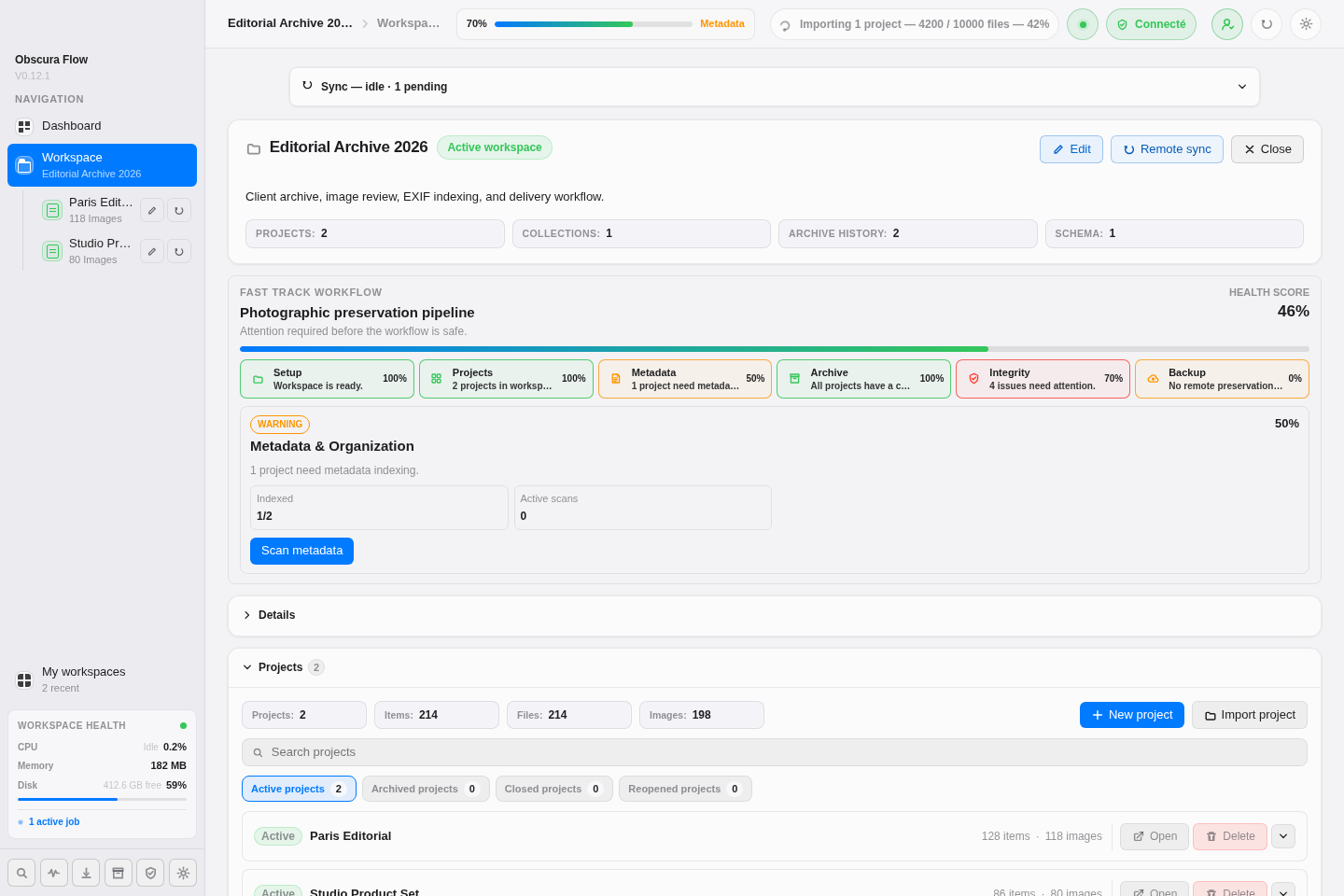
Section titled “Key concepts”A workspace is the main product container. It stores context information, projects, collections, settings, recent files, archive history, and environment metadata in an .obf file.
A project represents a photography set tracked inside the workspace. EXIF metadata, import rules, and archive history help document the project lifecycle.
From the workspace view, you can edit the name and description, check API status, follow synchronization state, import a project, and open settings. See also Workspace.
Local and remote workspaces
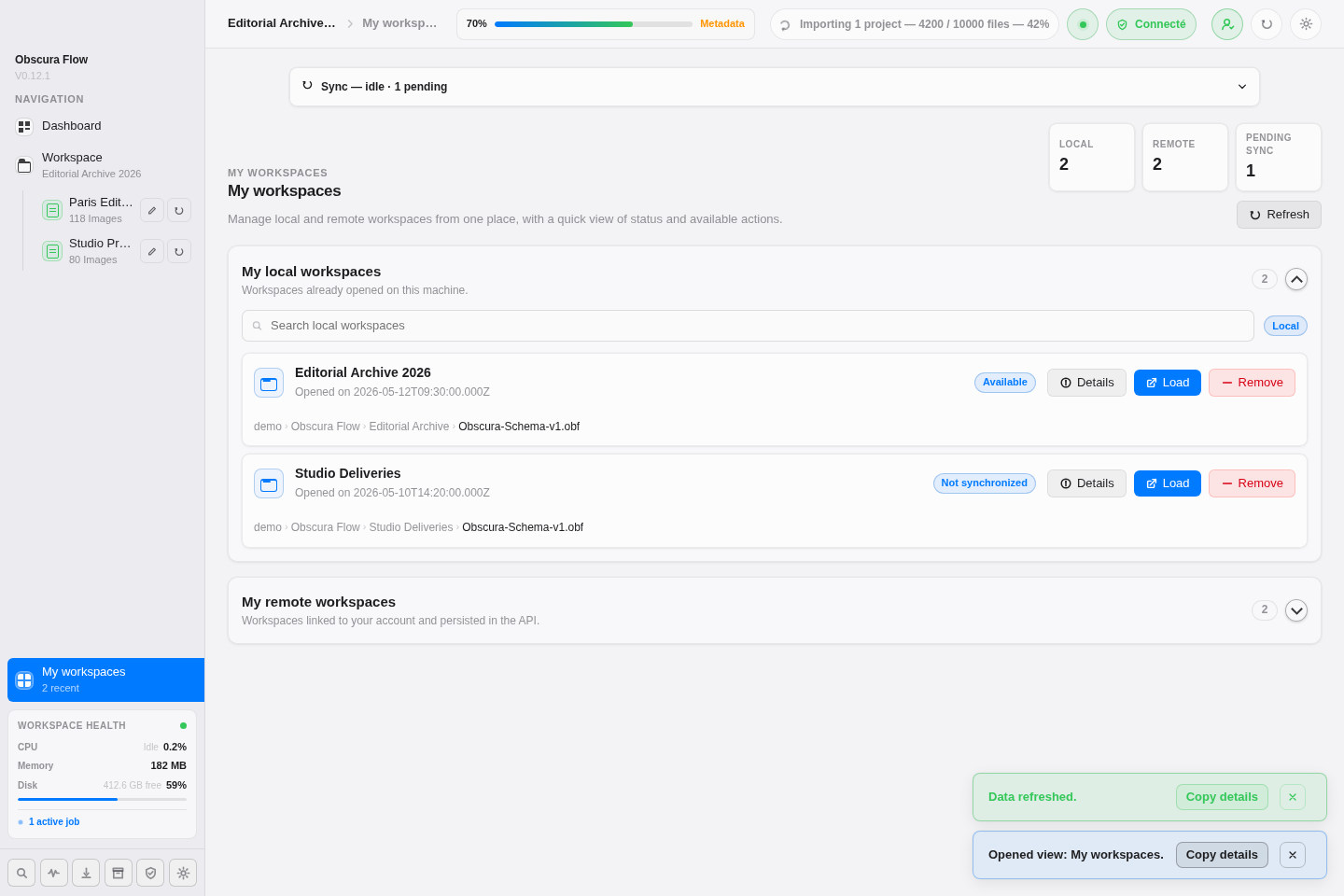
Section titled “Local and remote workspaces”The My workspaces view separates workspaces recently opened on the machine from remote workspaces stored through the API.
For a local workspace, you can show details, open the file, or remove it from the recent list. Removing the entry does not delete the .obf file.
Projects and EXIF metadata
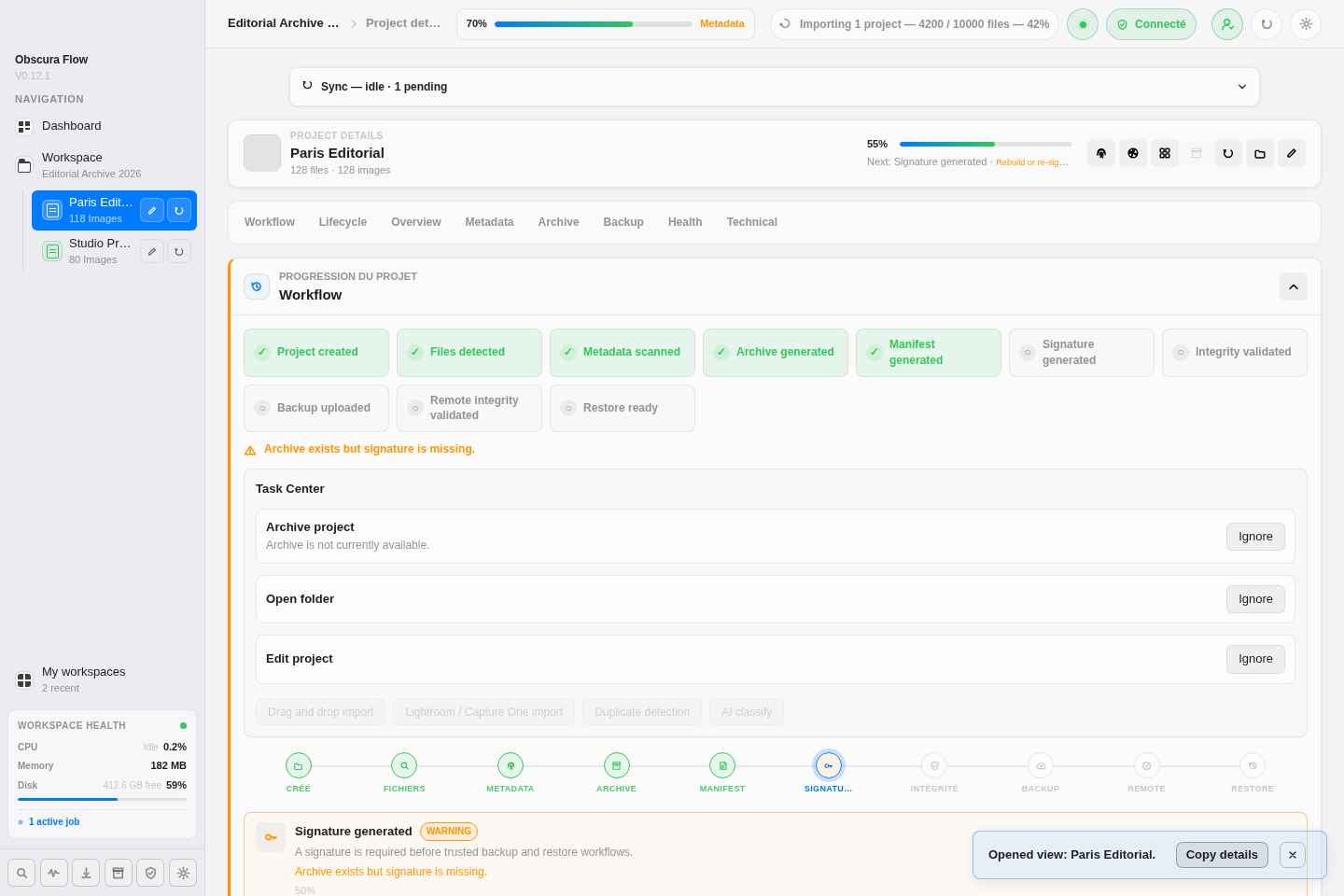
Section titled “Projects and EXIF metadata”The project detail page shows editable information, technical counters, the EXIF scan action, and formatted photography metadata.
Import Center
Section titled “Import Center”Import Center guides copy, move, and reference imports. Imports between macOS volumes use a safe copy fallback when the native move is not possible, then clean up the source only for move imports and only after verification.
The import report lists skipped system files, possible duplicates calculated with checksums, and folders whose path segments start or end with a space. These folders are not renamed automatically; the report helps prevent confusing near-duplicate folders later.
Settings
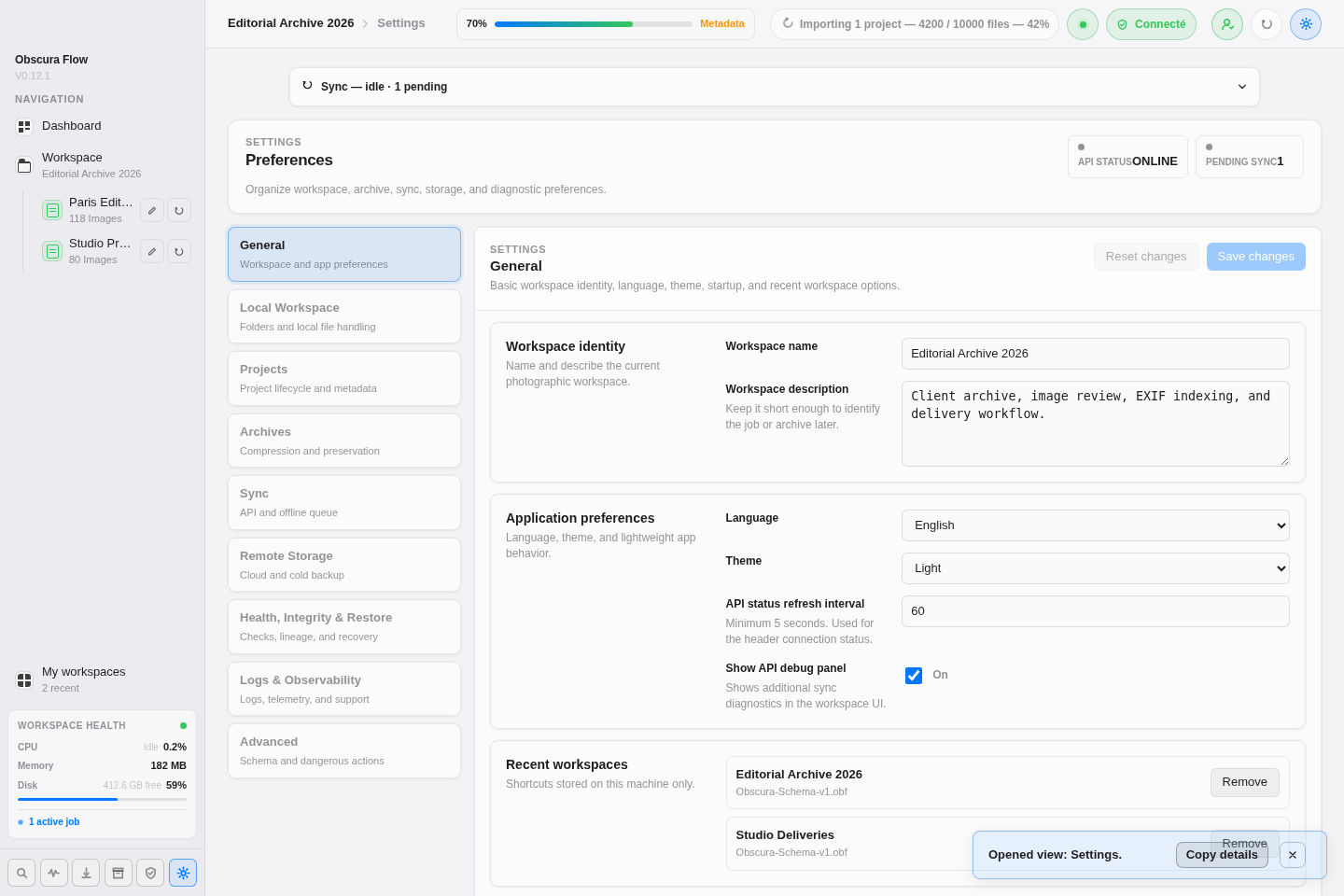
Section titled “Settings”The settings page is organized into business tabs. Each tab keeps draft changes until you click Save changes. See also Settings.
Settings cover workspace details, language and theme, API health polling, local paths, import and duplicate rules, scan behavior, and archive naming.
Synchronization
Section titled “Synchronization”When the API is available and synchronization is enabled, local changes are sent to the backend. If the API is unavailable, Obscura Flow queues operations and drains them when the connection is restored.
Product sections
Section titled “Product sections”- Interface reference reviews buttons, menus, shortcuts, forms, and states.
- Operations centers covers Health Center, Integrity Center, Restore Center, Archive Center, and logs.
- License explains activation, local use, and license support context.
- Privacy explains which data stays local and which data can be synchronized.
- FAQ answers common questions about workspaces, projects, archives, and synchronization.
- Contact helps prepare a useful support request.