Getting started
Getting started
Section titled “Getting started”This page helps you get from the home screen to a usable Obscura Flow workspace.
Download the application
Section titled “Download the application”User video
Section titled “User video”Open the application
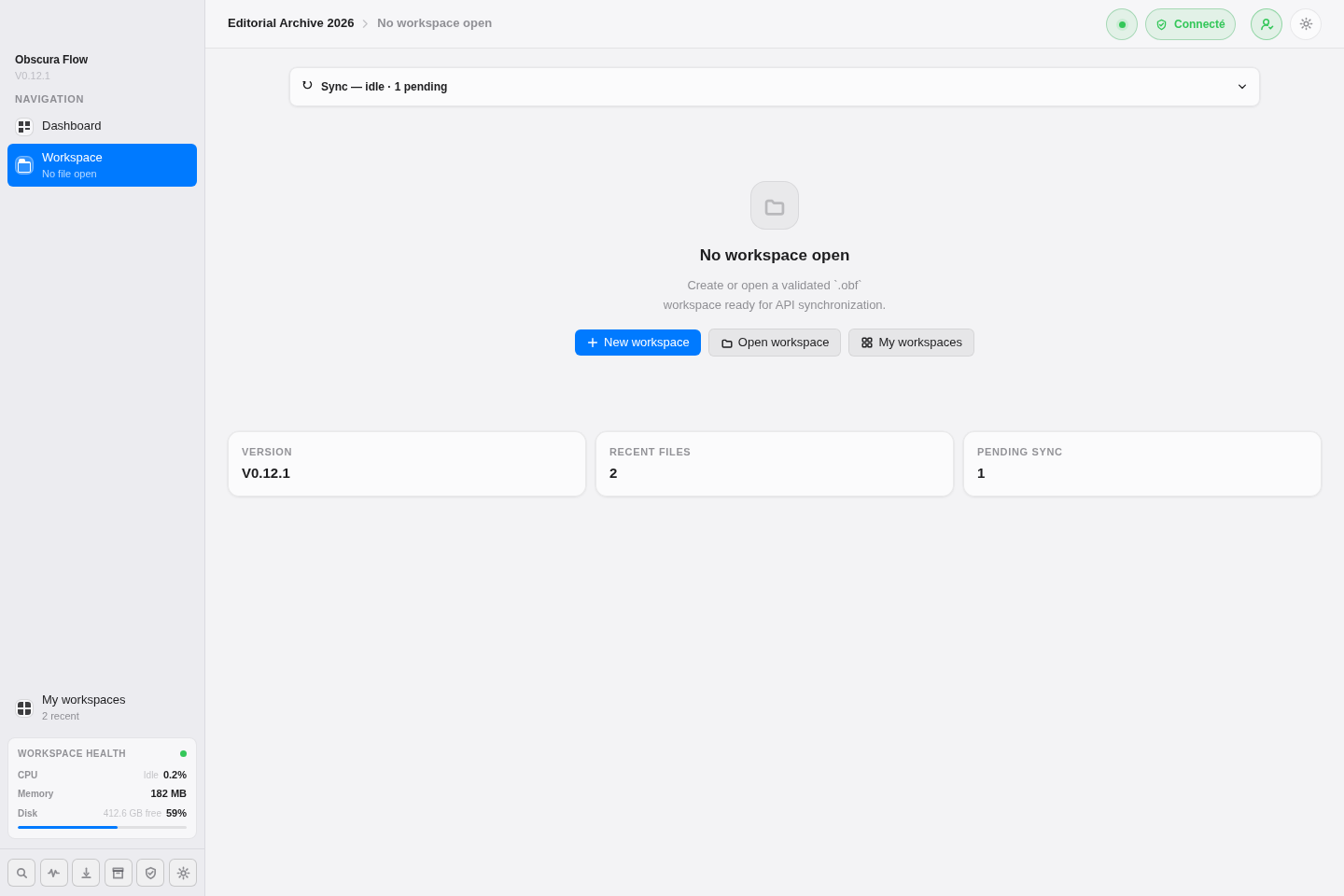
Section titled “Open the application”At startup, Obscura Flow restores the available local state: current workspace, preferences, recent workspaces, API status, and synchronization status. If no workspace is open, the home screen exposes the main actions.
Create a workspace
Section titled “Create a workspace”- Click
New workspace. - Enter a workspace name.
- Add a description if needed.
- Choose the local folder in the system picker.
- Confirm creation.
The selected folder must not already contain an .obf workspace. Obscura Flow creates a schema-validated JSON workspace file, then attempts API synchronization when available and enabled.
Open an existing workspace
Section titled “Open an existing workspace”Click Open workspace, then select an .obf file. The application rejects files with the wrong extension, invalid JSON, an unsupported schema, or template placeholders.
Find your workspaces
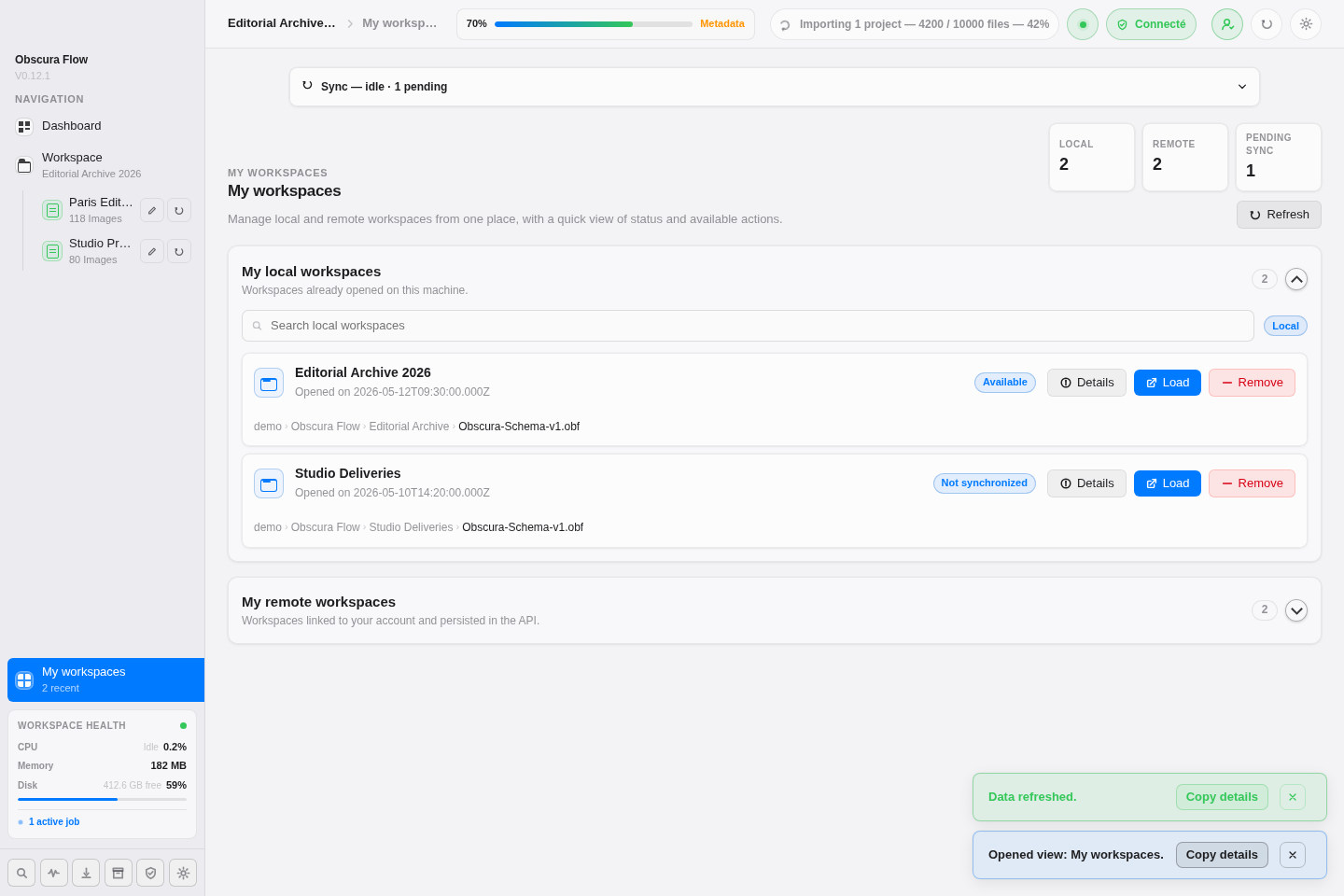
Section titled “Find your workspaces”The workspaces view shows recent local workspaces and, when the API is available, remote workspaces for the authenticated user.
Next step
Section titled “Next step”Read the user guide to organize projects, inspect metadata, configure the workspace, and prepare archives.